Overview
The Tag functionality enables customised tagging or categorisation of referrals. They can be applied at any time after the referral is created.
Tags can be used to identify incidents, such as "Bushfire", "Floods", or be used as a quick reference comment or category, e.g. "Waiting for documents".
Depending on the situation, tags can be applied as an indicator to the team that an action is required, or to show what the record relates to so it can be actioned accordingly.
Applied tags will display prominently in the lists on the main page.
The function includes the option to generate an email notification when the tag is applied.
Process
On the referral screen, the Manage tags button will appear at the top right of the screen if tags have been set up. Click this button to display the dropdown for adding a tag.
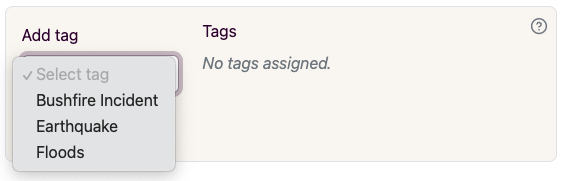
The tag behaves the same as most other fields on the screen, in that the referral will need to be saved in order to apply the tag.
Once saved, another tag can be added.
Applied tags will display in the lists on the main screen.
If the tag is configured for email notifications, an email will be sent. An example is shown below.
Tags filter
On the landing page, the Tags filter is accessible from the header for the Tags column.
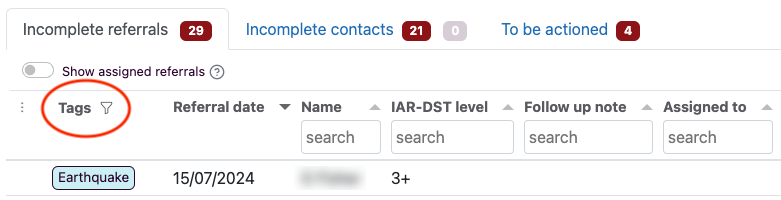
The list will filter according to the setting on the Tag filter screen.
Tag History
In the section of the screen where Tags are applied there is a “Tag history” button for displaying a history of tags applied and removed.
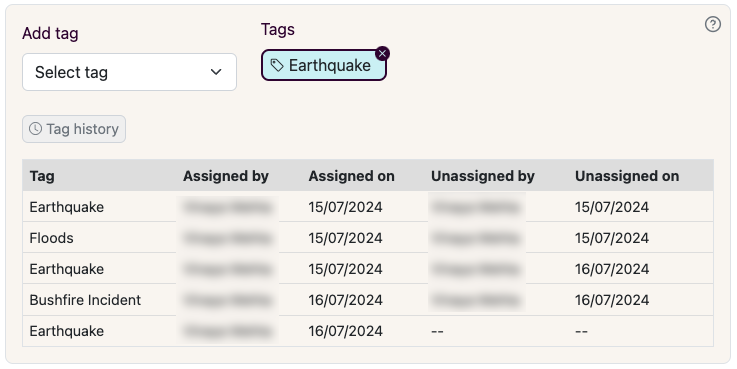
Setting up Tags
To set up a tag contact Medicare Mental Health Support at pmhcis.support@nwmphn.org.au.