Recording case notes
Intake case notes
Case notes are entered referral screen just above where the IAR domains are set:
To enter a note, click the “New note” button. The little form below will appear in the main form. Fill in the field/s as needed and click the “Save” button to save the note.
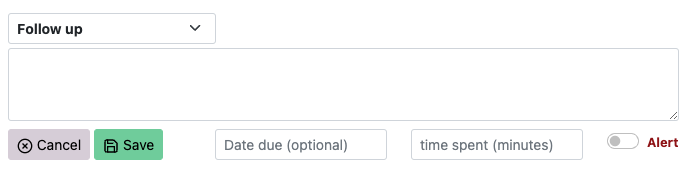
By default, the “Follow up” type appears, but you can click that field to set one of the other available types (“Clinical” and “Documentation”):
Edit a note
You can edit a saved note by clicking on the text of the note. The display will switch to the form view (as per the screenshot above).
Note fields
Each type is treated differently in the system:
- Clinical notes can only be entered when the referral is unlocked (i.e. not Sent or Accepted).
- Follow up, Documentation, and Assessment notes can be entered even when the referral is locked.
- Clinical notes will always appear when you print.
- Follow up and Clinical review notes can use the reminder function (see below).
The intent of the Documentation type is to record a copy of documents/emails. The use of this type is optional.
The intent of the Time spent field is to record the time taken to work with the client. The use of this field is optional.
The intent of the Assessment type is to record time spent on an assessment so that this can be monitored by intake managers.
The alert toggle switch can be used to alert other clinicians to an aggressive or violent history. If a client has a note with the alert switched on, it will highlight in red in the Reports section:
You can use the Date due field to set a reminder. Refer to the Setting reminders and assigning to a staff member section.
It will also display the button shown below on the Client screen. You can click on the button to display the note where the alert is recorded and a link to open the referral.
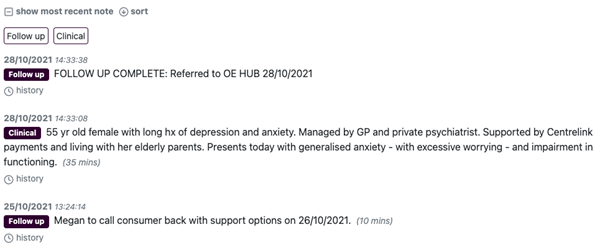
When more than one note is saved, the screen displays only the most recent note by default. But you can click a link to show all notes or go back to showing only one. You can also sort notes and filter by type. The screenshot below is an example when all notes are shown.
Medicare Mental Health Hub/Pop-up/Centre case notes
Once the referral has been sent to the Medicare Mental Health treatment centre by the PHN intake team staff are not to record further information (such as attempts to contact). Case notes should be recorded in their own client information management system (CIMS). Even though the ‘Follow up’ notes can be added/edited, this is reserved for PHN intake staff to enter case notes.
However, where the intake was done at the centre, staff can continue to add/edit notes.